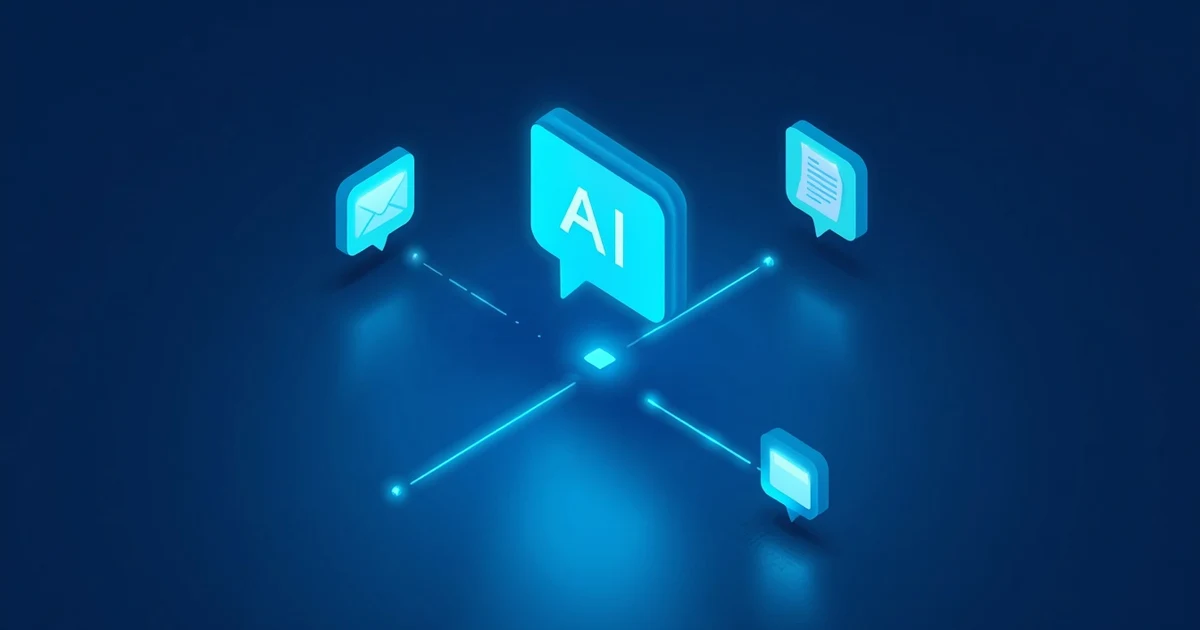
Searching email, finding appointments, summarizing documents, or combining information from several sources used to mean switching between Gmail, Google Calendar, Google Drive, and various browser tabs.
With the current apps in ChatGPT, a large share of that work can now be handled directly inside a ChatGPT conversation.
Along the way, OpenAI has changed the terminology and the underlying features quite a bit over the past few months. What used to be called a connector is now called an app. Since July 2026, new workflow integrations are also discovered through the plugin directory, while apps continue to provide the actual connection to external data and actions.
Services you can connect include:
- Gmail
- Google Calendar
- Google Drive
- Google Docs
- Google Sheets
- Google Slides
Docs, Sheets, and Slides are now provided through the shared Google Drive app rather than as separate apps in the ChatGPT app directory.
As a result, ChatGPT is turning from a pure question-and-answer system into more of a workspace that can pull information from the services you already use.
What's the benefit of connecting ChatGPT and Google?
The biggest advantage is that ChatGPT no longer has to work exclusively with information you manually paste into a chat.
Once a connection is authorized, ChatGPT can — depending on your plan, the features enabled, and your permissions — search connected apps and factor that information into its answers. Some apps also support syncing and write actions.
Instead of opening ten emails yourself, you could ask ChatGPT:
"Summarize the most important emails about Project Alpha from this week."
Or: "What appointments do I have tomorrow, and which of them overlap?"
Or: "Find the latest project description in my Google Drive and summarize the key changes."
This is exactly where the difference between a classic chatbot and a connected AI assistant becomes clear. For a deeper look at what ChatGPT can now do on its own as a connected agent, see ChatGPT Agent 2026: What Can the AI Agent Really Do? (Read article).
Which Google services can ChatGPT use?
Connecting Gmail to ChatGPT
With a connected Gmail app, ChatGPT can factor information from your inbox into the conversation.
That opens up tasks like:
- finding specific emails
- searching messages by sender or topic
- summarizing long email threads
- pulling open tasks out of messages
- drafting replies
- writing email drafts
Since June 2026, ChatGPT on the web also supports drafting and, once approved, sending emails directly within a conversation for connected Gmail accounts on Plus, Pro, Business, and Enterprise. ChatGPT first creates a draft before the message is sent.
A typical prompt might be:
"Find the latest messages from Müller GmbH and summarize what's still open."
Or: "Draft a friendly reply to the last message from Mr. Müller and take the open items from the previous thread into account."
That makes ChatGPT especially useful for people who deal with large volumes of email every day.
Connecting Google Calendar to ChatGPT
Google Calendar can also be connected to ChatGPT as a data source, or app.
That lets ChatGPT help with questions like: "What appointments do I have tomorrow?", "When do I have two free hours on Thursday?", or "Summarize my appointments for next week."
Beyond that, the Google apps gained write actions in 2026. When the corresponding actions are enabled, calendar apps can also be used to set up meetings. In managed workspaces, administrators can define which actions are actually allowed.
This is especially useful when ChatGPT already knows information from an email.
One possible workflow: ChatGPT finds a customer's latest message, recognizes that an appointment is needed, checks the calendar, and has you narrow down suitable time slots. An appointment can then be prepared — or, if enabled, created outright.
That lets several previously separate steps flow together into a single conversation.
Connecting Google Drive to ChatGPT
The connection to Google Drive is particularly interesting.
The Drive app can now also provide functionality for Google Docs, Google Sheets, and Google Slides. OpenAI merged these previously separate Google file integrations under Google Drive.
With the right connection, ChatGPT can search for documents, analyze content, or draw on synced information.
Example: "Find the current project plan for the website relaunch and summarize the key milestones." Or: "Compare the last two versions of our project description and tell me the main differences."
Google Drive also offers a sync feature. Content can be pre-indexed, which lets ChatGPT find information faster across your connected files. Availability depends on your ChatGPT plan and, where relevant, workspace settings. OpenAI describes a dedicated Google Drive sync for Pro users as well as suitably configured Business and Enterprise workspaces. For a deeper look at thorough, source-based research across multiple documents, see How to Use ChatGPT Deep Research – 2026 Guide (Read article).
Related product in my shop (German-language edition)
ChatGPT & Plugins installieren und Nutzen
A step-by-step, screenshot-based German-language guide to connecting ChatGPT with Gmail, Google Calendar, Google Drive, Outlook, Slack, and GitHub — with a strong focus on permissions and privacy.
Connecting ChatGPT to Gmail, Calendar, and Drive: step by step
ChatGPT's interface is updated regularly. As of now, you manage connected services through the app, or plugin, settings.
Step 1: Open ChatGPT settings
Open ChatGPT and click your profile. Then choose: Settings → Apps.
There you can manage apps you've already connected and review their permissions.
New integrations can also be found through the plugin directory. As of July 9, 2026, this directory is the central place to discover new workflow features. If you also want to build your own integrations with internal systems, the technical foundations are covered in MCP Explained Simply: What Is the Model Context Protocol? (Read article).
Step 2: Choose the Google app you need
Search for the integration you need — for example Gmail, Google Calendar, or Google Drive. Then select Connect.
Which apps are actually shown or connectable depends on your ChatGPT plan, your region, the interface you're using, and any workspace settings. On business accounts, the feature may also be restricted by administrators.
Step 3: Choose your Google account
After you start the connection, you'll be redirected to Google sign-in.
If you have several Google accounts, make sure to select the right one. In a business context especially, be careful not to accidentally connect a personal Google account to a work ChatGPT workspace.
Step 4: Review the permissions
Google then shows you which permissions ChatGPT is requesting. These can vary depending on the app and the features enabled.
For Google Drive, for example, this may include read access or — if write actions are used — additional permissions to create, update, move, or manage files. Calendar and Gmail features each come with their own OAuth permissions.
Read these permissions carefully before confirming the connection.
Step 5: Use the app
Once connected, ChatGPT can use the app whenever it's relevant to your request. You can also address an app directly in your prompt.
For example: "Search Gmail for messages about the KI-Buster project from the past seven days." Or: "Check my Google Calendar for open slots next Tuesday." Or: "Search Google Drive for documents about cybersecurity."
The more specific your request, the better ChatGPT can narrow down what data it actually needs.
What are write actions in ChatGPT?
One of the most important developments of 2026 is so-called write actions.
With write actions, a connected app is no longer limited to reading information. Depending on the app and the permissions granted, data can also be created, updated, moved, changed, or sent.
OpenAI expanded the Google and Microsoft apps with write actions starting in March 2026. Examples include creating Google Docs and spreadsheets, or setting up meetings through calendar apps.
That doesn't mean ChatGPT is automatically allowed to make every change on its own, though.
Does ChatGPT have to ask before making changes?
ChatGPT offers different permission levels for apps. As of now, the available settings include: Always ask, Any changes, Important actions, and Never ask.
By default, OpenAI uses Important actions. Under this setting, ChatGPT can read information automatically but must ask for approval before particularly significant actions.
Important actions can include: sending an email, sending an invite, changing an appointment, deleting content, moving or renaming files, or changing sharing permissions.
Before such actions, ChatGPT can show a confirmation card. That's an important safety mechanism.
In a professional setting especially, I'd argue ChatGPT shouldn't be given blanket permission to make every change without asking first. For a look at how attackers could exploit hidden instructions in documents or emails to manipulate exactly this kind of approval, see Prompt Injection Explained: How Attackers Manipulate AI Agents (Read article).
ChatGPT, Gmail, and privacy: is my email used for training?
This question is likely decisive for many users.
In its current privacy documentation for connected Google apps, OpenAI states that data synced directly from connected Google apps is generally not used to train its general-purpose models. OpenAI names exceptions for content a user actively submits as feedback, manually copies or uploads into ChatGPT, or that becomes part of a ChatGPT response.
That doesn't mean privacy stops mattering, though.
Anyone who grants access to Gmail, Calendar, or Drive naturally allows ChatGPT to process whatever information has been shared.
Especially with trade secrets, personal data, contracts, customer data, job applications, internal documents, and financial information, you should check beforehand whether — and to what extent — a connection makes sense and is organizationally acceptable.
What happens during a sync?
For certain apps, ChatGPT can build an indexed copy of synced content so information can be found faster.
OpenAI states that such an indexed copy is deleted within 30 days after a Google app is disconnected.
If Memory is also enabled, relevant information from connected apps can additionally be used for personalization. For a closer look at how ChatGPT manages this kind of memory across multiple conversations and how to control it, see ChatGPT Memory Explained: What It Remembers – and What It Doesn't (Read article).
If you don't want that, you can disable Memory, disconnect the app in question, or delete the relevant conversations.
OpenAI explicitly notes that Google app data can contain sensitive information, and that users should only enable the connection if they're comfortable with that kind of processing.
Can ChatGPT access my entire Google account?
No — not automatically.
ChatGPT can only access the Google account and the areas that were authorized as part of the connection and the permissions you granted.
OpenAI also states that existing access rights are respected. The app connection doesn't automatically give ChatGPT access to files or information that the connected user themselves cannot access.
Businesses have additional controls available. Administrators can, for example, restrict or fully disable specific apps or actions.
Google Workspace and ChatGPT: what admins should know
For businesses, setup is somewhat more involved than for a single individual user.
ChatGPT Business, Enterprise, and Edu come with additional admin controls.
According to current OpenAI documentation, apps are generally enabled by default on Business workspaces. On Enterprise and Edu workspaces, apps are disabled by default and must be turned on by administrators.
Administrators can define, among other things: which apps are available, which users get access, which actions are allowed, whether only read access is possible, which write actions are enabled, and which apps may be synced.
With Google Workspace, the required Google OAuth permissions must also be allowed. If a needed scope is missing, users may get authorization or permission errors when connecting or using a Google app.
For administrators, this means: ChatGPT-side and Google Workspace-side permissions need to match up. Configuring just one side often isn't enough. When this kind of official access isn't set up cleanly, employees tend to fall back on personal accounts or unvetted tools — a pattern covered in detail in Shadow AI at Work: When Employees Secretly Use ChatGPT (Read article).
Google Drive sync for organizations
Google Drive sync is particularly interesting for organizations.
Depending on workspace configuration, administrators can decide which parts of a Google Drive are included.
OpenAI describes options such as including or excluding specific shared drives. Different setup models are available for Business, Enterprise, and comparable workspace environments.
This can turn ChatGPT into a kind of intelligent search layer for internal knowledge.
An employee might ask: "What's our current travel expense policy?" ChatGPT could then pull up the relevant document from the shared company knowledge base.
That can be considerably faster than a classic search by file name and folder, especially in large document collections.
If you want to manage files not just through Google Drive but directly in ChatGPT — for example in Projects or the Library — How to Organize ChatGPT Properly: Chats, Projects, Memory, and Files Compared (Read article) gives you an overview.
Related product in my shop (German-language edition)
KI ohne Bauchschmerzen
A practical German-language guide for small businesses with 50 prompt templates, 15 workflows, and a 21-day plan for controlled AI adoption — also useful for setting up Google app permissions the right way.
Best practical examples for ChatGPT with Gmail, Calendar, and Drive
1. Build a morning briefing
Prompt: "Summarize my most important unread emails, then show me today's appointments. Highlight the tasks I should get done today."
This combines email and calendar information.
2. Prepare customer communication
Prompt: "Find the latest emails from Sample Company Inc, summarize where things stand, and draft a reply."
That way, you don't have to read an entire email thread manually.
3. Find project documents
Prompt: "Search Google Drive for the current documents on the website relaunch project and tell me the most important open tasks."
Especially useful with large Drive structures.
4. Prepare for a meeting
Prompt: "I have a meeting with Sample Company Inc tomorrow. Find the relevant emails and related documents in Google Drive and put together a short meeting brief."
This is where connected apps really show their strength: ChatGPT can tie information from multiple sources together.
5. Spot appointments hidden in emails
Prompt: "Check my emails from the last three days for scheduling requests and compare them with my calendar."
That can help surface appointments you might otherwise have forgotten.
6. Build a weekly recap
Prompt: "Create a weekly recap from my most important emails, appointments, and relevant project documents."
Especially for freelancers, managers, or project leads, this can turn into a genuinely useful workflow.
Which recurring office tasks — from appointments and email drafts to reports — you can automate with AI first is laid out in AI in the Office: 10 Tasks Small Businesses Can Automate Right Away (Read article).
Can ChatGPT monitor my apps automatically?
The possibilities go even further than that.
In 2026, ChatGPT also supports scheduled tasks that, when configured, can check connected apps for changes. OpenAI describes recurring tasks that monitor connected apps and only notify you when something relevant has changed.
That opens up workflows like: "Check my important appointments and open messages every morning and give me a summary."
This is turning ChatGPT increasingly into a personal work assistant, rather than a tool that only reacts to individual questions.
Is connecting ChatGPT to Gmail safe?
A blanket answer wouldn't be honest.
Technically, OpenAI offers several safeguards: OAuth-based authorization, respect for existing user permissions, adjustable app permissions, confirmations before important actions, admin controls in workspaces, and the ability to disconnect apps at any time.
Still, every additional integration inherently increases the number of systems that can access your data.
That's why, especially in businesses, the guiding principle should be: grant only as many permissions as are actually needed.
If you only want to search documents, you probably don't need extensive write actions. If you only use ChatGPT to summarize emails, consider whether automatic sending is really necessary.
Common mistakes when connecting Google and ChatGPT
"Connect" is greyed out
This can be caused by your plan, your region, workspace policies, administrator restrictions, or unsupported features. OpenAI notes that app availability can depend on plan, workspace, role, region, and the interface being used.
Google refuses authorization
On managed Google Workspace accounts, certain OAuth permissions may be blocked. The Google Workspace administrator then needs to check whether the required permissions for the ChatGPT/OpenAI app have been allowed.
Google Drive can't find documents
With sync enabled, it can take some time before files are fully synced and indexed. OpenAI explicitly notes during setup that the first sync can take a while. The connected user also needs to have access to the document themselves.
ChatGPT is read-only
That's not necessarily a mistake. Write actions can be disabled, or restricted by a workspace administrator. In business environments especially, that's often actually the more sensible configuration.
Connect ChatGPT to Google, or keep uploading data manually?
Both approaches have their place.
Manual uploads work better if you only occasionally analyze individual files, don't want to set up permanent access, the data involved is especially sensitive, or you want tight control over exactly which file ChatGPT receives.
An app connection works better if you use Gmail with ChatGPT regularly, ask about appointments often, need to search a large Google Drive, want to automate recurring workflows, or want several Google services evaluated together.
The real advantage of a connection isn't really any single feature. It's the ability to combine several information sources within the same conversation.
ChatGPT + Gmail + Calendar + Drive: a look ahead
Connecting external services is changing how ChatGPT can be used.
A classic chatbot waits for information. An AI assistant connected to your actual work tools can instead search for relevant information within authorized sources on its own and — where explicitly allowed — even prepare or carry out actions.
That's exactly where the real productivity gain comes from.
A request like "Get me ready for my next client meeting" could, in theory, pull together information from your calendar, emails, documents, and spreadsheets.
What used to require several manual searches becomes a single natural-language request.
Conclusion: is it worth connecting ChatGPT to Gmail, Google Calendar, and Drive?
For many users: yes.
The connection is especially interesting for people who already work with Gmail, Google Calendar, and Google Drive every day.
ChatGPT gains a lot more context as a result, making tasks like summarizing emails, searching messages, drafting replies, analyzing appointments, preparing meetings, finding documents, summarizing files, and combining information from multiple sources noticeably easier.
By 2026, these integrations have become far more capable. Depending on configuration, apps are no longer limited to reading information — they can also carry out actions. At the same time, users and administrators can define exactly which permissions ChatGPT actually gets.
That's precisely why the setup deserves careful thought. The best configuration isn't the one with the most permissions — it's the one with exactly the permissions your workflow actually needs.
For individual users, this can become a personal assistant for email, appointments, and documents. For businesses, combining ChatGPT, Google Workspace, and controlled app permissions can become a powerful interface between AI and existing company data. For a look at the additional obligations businesses face under the EU AI Act when AI systems like ChatGPT access company data, see EU AI Act for Small Businesses: What SMEs Need to Know Now (Read article).
These same connected apps and permissions are also the foundation for ChatGPT Work, which can turn them into complete, multi-step work products instead of single answers — see ChatGPT Work Explained: How to Tackle Bigger Tasks with ChatGPT in 2026 (Read article) for more.
Frequently asked questions about ChatGPT, Gmail, Calendar, and Drive
Can I connect ChatGPT to Gmail?
Yes. Gmail can be used as a connected app in ChatGPT. Actual availability and individual features can depend on your ChatGPT plan, your region, and workspace settings.
Can ChatGPT read my Gmail messages?
After an authorized connection, ChatGPT can use information from Gmail according to the permissions you grant. This does not automatically give it unlimited access to other Google accounts or services.
Can ChatGPT send emails through Gmail?
Yes. Since June 2026, users on certain paid ChatGPT plans can draft and, after approval, send emails with a connected Gmail account directly within a conversation on the web.
Can ChatGPT read my Google Calendar?
A connected Google Calendar app can use calendar information for relevant requests. Depending on which actions are enabled, calendar features can also be used to set up meetings.
Can ChatGPT create calendar events?
Yes, provided the corresponding calendar write action has been enabled for the account or workspace. In managed environments, administrators can restrict or disable these actions.
Can ChatGPT access Google Drive?
Yes. Google Drive can be connected to ChatGPT. For certain plans and workspaces, a sync feature is also available.
Do Google Docs, Sheets, and Slides work with ChatGPT?
Yes. These features are now provided through the shared Google Drive app. Separate apps for Google Docs, Sheets, and Slides are no longer listed in the ChatGPT app directory.
Is my Google data used to train ChatGPT?
OpenAI states that data synced directly from connected Google apps is generally not used to train its general-purpose models. Exceptions apply to special cases, such as content actively submitted as feedback or manually copied into a chat.
Can I remove the connection later?
Yes. Connected Google apps can be disconnected again in ChatGPT settings. For synced Google data, OpenAI states that an indexed copy is deleted within 30 days after disconnecting.
Do I need ChatGPT Plus?
Which app and which feature is available depends on your plan. For example, OpenAI describes Google Drive sync for Pro as well as suitably configured Business and Enterprise workspaces, while other Google features may also be available on other plans. The current app listing in your own ChatGPT account is what ultimately decides this.
Sources and currency
Article current as of: August 2026.
For the current features described here, only official OpenAI information was used, including OpenAI's documentation on apps in ChatGPT, Google app privacy and permissions, Google Drive sync, and the official ChatGPT release notes.
AI Skills, Plugins, Apps, and MCP: What's the Difference? (Read article)