
Docker has become one of the most important tools for servers, development environments, homelabs, and modern web applications. But the moment a container suddenly exits, an application becomes unreachable, or Docker Compose throws a cryptic error, the troubleshooting begins.
This is exactly where ChatGPT can be surprisingly helpful for Docker error analysis.
The AI can explain Docker logs, interpret error messages, review configuration files, and suggest the right diagnostic commands.
However, this only works reliably if ChatGPT gets the right information.
This article explains not only how to analyze Docker errors with ChatGPT, but also which information you should gather and how to narrow down common Docker problems step by step.
Can ChatGPT actually fix Docker errors?
ChatGPT cannot automatically repair a broken Docker container on your server unless the AI has direct administrative access to that system.
What ChatGPT is very good at, however, is analyzing information you already have. This includes, for example:
- Docker error messages
- Container logs
- Docker Compose files
- Dockerfiles
- Exit codes
- Network configuration
- Volume mounts
- File permissions
- Healthchecks
- Linux system messages
That makes ChatGPT an excellent additional troubleshooting assistant. Instead of researching an error message across various forums and documentation pages one by one, you can have logs and configuration information analyzed together.
The decisive factor, though: the better the information you provide, the better the error analysis can be.
1. First, check the state of the Docker container
If a Docker service isn't working, first check whether the container is even running.
docker psThis shows currently running containers. To see all containers — including already-exited ones — use:
docker ps -aA typical output might look like this:
CONTAINER ID   IMAGE          COMMAND       STATUS                     PORTS
a82956ac1234   nginx:latest   nginx -g ...  Exited (1) 2 minutes ago
What matters here is Exited (1). The container was terminated. At this point, don't start randomly tweaking settings. First you need to find out why Docker terminated the container.
2. Read the Docker logs
The most important command for a first analysis is:
docker logs CONTAINERNAMEFor example, docker logs nginx. For very large logs, don't paste thousands of unfiltered lines into ChatGPT. Better:
docker logs --tail 100 nginxThis gives you just the last 100 log lines. A timestamp can help even more:
docker logs --timestamps --tail 100 nginxFor a currently running container, you can follow the output live:
docker logs -f nginxWith that, you already have one of the most important information sources for the subsequent ChatGPT analysis. Many of the diagnostic commands in this guide can also be bundled into a reusable diagnostic script that ChatGPT can write for you on request. Write Shell Scripts with ChatGPT (Read article)
3. The right ChatGPT prompt for Docker errors
A common mistake is pasting just the error message into ChatGPT and writing: What's broken? That leaves out important context.
A much better prompt looks like this:
I'm running a Docker container on Ubuntu.
The container fails to start and exits with exit code 1.

Here are the last Docker logs:
[PASTE LOGS]

Please analyze the error.

Explain to me:
1. What the likely cause is.
2. Which diagnostic commands I should run next.
3. How I can clearly confirm the cause.
4. Which change is likely to fix the problem.
5. Whether the proposed change has any risks or side effects.

Please don't change multiple things at once — walk through the troubleshooting step by step.
That last sentence matters a lot. Professional troubleshooting means forming a hypothesis, verifying it, and only then making the next change.
4. Use docker inspect
Docker has another very powerful diagnostic feature:
docker inspect CONTAINERNAMEThe output includes information about the network, IP addresses, volumes, ports, environment variables, entrypoint, start parameters, healthcheck, mounts, and container status. For a quick status check, use for example:
docker inspect nginx --format='{{.State.Status}}'
docker inspect nginx --format='{{.State.ExitCode}}'
docker inspect nginx --format='{{.State.Error}}'
You can then have ChatGPT analyze this data together with the Docker logs.
5. Understand Docker exit codes
When a container exits, Docker often shows an exit code. Administrators run into a few of these particularly often.
Exit code 0 — Exited (0)
The program terminated normally. That doesn't necessarily mean everything is working — for a web server that's meant to run continuously, even a clean exit can point to a misconfigured container.
Exit code 1 — Exited (1)
A generic application error. The actual cause is normally in the container logs.
Exit code 126
The specified command was found but could not be executed. A possible cause is missing execute permissions, for example chmod +x start.sh. But again: check the cause first, then change it.
Exit code 127
The command to execute was not found, for example /bin/sh: start.sh: not found. Possible causes: wrong path, missing file, faulty container build, broken entrypoint.
Exit code 137
This code often shows up when a process was killed. A common cause is running out of memory — an OOM kill. Check for example:
docker inspect CONTAINERNAME --format='{{.State.OOMKilled}}'
dmesg | grep -i oom
journalctl -k | grep -i oom
If you see matching entries there, ChatGPT has considerably more information for a well-founded analysis.
6. The "port is already allocated" Docker error
One of the best-known Docker errors reads roughly like this:
Bind for 0.0.0.0:8080 failed:
port is already allocated
The cause is usually simple: another service is already using the requested port. On Linux you can check, for example:
ss -tulpn | grep :8080
sudo lsof -i :8080
docker ps
Say your docker-compose.yml contains ports: - "8080:80". You could change it to ports: - "8081:80". The application would then be reachable on port 8081.
7. "Permission denied" in Docker
Another common error message is Permission denied. It sounds unambiguous at first, but very different causes can be behind it — a wrong file owner, wrong file permissions, a container running as a different user, a mounted directory with the wrong permissions, SELinux, AppArmor, or a Docker socket with the wrong access rights.
An important diagnostic command:
ls -la /PATH/TO/DIRECTORY
id
docker exec CONTAINERNAME id
This lets you compare which UID and GID the process runs under inside the container — often decisive with Docker volumes.
8. A Docker volume isn't working
Say you mount a local directory: volumes: - ./data:/app/data. The application then reports Permission denied: /app/data. First check the local permissions:
ls -ld ./data
docker exec CONTAINERNAME ls -ld /app/data
docker exec CONTAINERNAME id
With these three pieces of information, ChatGPT can often already tell whether a UID/GID mismatch is the issue.
Important: don't reflexively run chmod -R 777 just to make something work. That grants every user read, write, and execute permissions — normally not a sound fix for production systems.
9. Analyze Docker Compose errors with ChatGPT
Docker Compose is convenient, but it doesn't make configuration errors impossible. A Compose file can first be checked with:
docker compose configThis command is extremely helpful. It processes the Compose configuration and can surface errors in YAML structure, variables, service definitions, network configuration, and volumes. After that you can start with:
docker compose up
docker compose up -d
docker compose ps
docker compose logs
docker compose logs --tail 100
10. An excellent prompt for Docker Compose
If you want ChatGPT to review a compose.yml, try a prompt like this:
Analyze the following Docker Compose file.

My goal:
The application should be reachable on port 8080 and persist its data in the local ./data directory.

Docker Compose reports this error:
[ERROR MESSAGE]

Docker Compose file:
[COMPOSE FILE]

Please check in particular:
- YAML syntax
- Ports
- Volumes
- Networks
- depends_on
- Environment variables
- User permissions
- Possible security issues

Explain the cause first, then show only the necessary changes.
This way ChatGPT knows not just what was configured, but also what's actually supposed to work — context that's decisive for troubleshooting.
11. Container is running — application still unreachable
A particularly nasty error: docker ps shows Up 5 minutes, yet the application is unreachable. Troubleshooting should then separate several layers.
Is the port published? docker ps shows, for example, 0.0.0.0:8080->80/tcp. Port 8080 on the Docker host should then be forwarded to port 80 on the container.
Is the application actually listening inside the container?
docker exec CONTAINERNAME ss -tulpnIf ss isn't available in the image, you may need other diagnostic options. A typical mistake is an application that only listens on 127.0.0.1. Inside a container, a web service usually needs to listen on 0.0.0.0 to be reachable over the Docker network.
12. Analyze Docker network problems
Docker networks can also be the cause of many problems.
docker network ls
docker network inspect NETWORKNAME
Containers within a Compose project can normally reach each other by their service name. Your application should address the database as db, not as localhost — because inside a container, localhost means that container itself. This is one of the most common misunderstandings for Docker beginners.
13. DNS problems inside a container
If a container can't reach external services, investigate networking and DNS separately.
docker exec CONTAINERNAME ping 8.8.8.8
docker exec CONTAINERNAME ping google.com
docker exec CONTAINERNAME cat /etc/resolv.conf
If an IP address is reachable but the hostname doesn't resolve, that points strongly to a DNS problem. This output is great material for a ChatGPT analysis.
14. A Docker image won't download
An error like pull access denied can occur, for example, if the image doesn't exist, the image name was mistyped, the repository is private, authentication is required, or the registry is unreachable.
docker pull IMAGE
docker login REGISTRY
Also double-check the exact image name you're using.
15. Docker reports "no space left on device"
This error is a classic. Check first:
df -h
df -i
docker system df
It's not always disk space alone — inodes can run out too. docker system df shows, among other things, how much space Docker itself is using.
Docker offers docker system prune, but this command shouldn't be run blindly. Depending on the options, it can remove resources that are still in use. Understand exactly which containers, images, networks, or volumes are still needed before running it. On production servers especially: analyze first, delete second.
16. Docker healthcheck failing
Sometimes the container is running but shows as unhealthy.
docker ps
docker inspect CONTAINERNAME
docker inspect CONTAINERNAME --format='{{json .State.Health}}'
A failing healthcheck doesn't automatically mean the whole application is down. The healthcheck itself might just be misconfigured — a wrong port, wrong URL, missing curl in the image, an endpoint requiring authentication, or an application that takes longer to start.
17. Check the Docker daemon
Some problems aren't about the container at all, but about Docker itself.
systemctl status docker
journalctl -u docker
journalctl -u docker -n 100
journalctl -fu docker
Storage driver issues, networking, iptables, container runtime, and filesystem problems often only become visible here. For a broader look at using ChatGPT for everyday Linux administration, see How I Use ChatGPT for Linux Administration (Read article).
18. Gather information about your Docker installation
For a thorough ChatGPT analysis, the following commands are helpful:
docker version
docker info
uname -a
cat /etc/os-release
This tells ChatGPT the operating system, kernel version, Docker version, storage driver, architecture, and container runtime in use — which can be decisive for more complex problems.
19. What a professional ChatGPT error analysis looks like
Say your Docker container won't start. Instead of just writing My Docker isn't working, work through it in a structured way.
Step 1: System information
docker version
docker info
cat /etc/os-release
Step 2: Container status
docker ps -aStep 3: Logs
docker logs --tail 100 CONTAINERNAMEStep 4: Container details
docker inspect CONTAINERNAMEStep 5: Check Compose (if used)
docker compose configStep 6: Brief ChatGPT — with a structured summary covering operating system, Docker version, container status, exit code, logs, Compose file, and expected versus actual behavior. That's far more effective than unstructured trial and error.
20. What you should never just send to ChatGPT
Log files and configuration require caution — they can contain sensitive information, such as passwords, API keys, access tokens, database credentials, private keys, internal IP addresses, customer data, session tokens, .env files, and cloud credentials.
Environment variables can be especially problematic. A Compose file might contain:
environment:
  DB_PASSWORD: SuperSecretPassword
  API_KEY: abcdef123456
Remove or anonymize this kind of information, for example DB_PASSWORD: REDACTED — the structure stays recognizable. If you'd rather not paste logs or configuration into a cloud AI at all, you can run a language model entirely locally instead. See Install Ollama on Linux: Run AI Locally (Read article).
21. Be careful with .env files
Many Docker projects use a .env file, which often holds particularly sensitive data — MYSQL_ROOT_PASSWORD, DATABASE_PASSWORD, OPENAI_API_KEY, SMTP_PASSWORD, or JWT_SECRET, for example. Don't copy a full .env file into an AI chat without thinking. An anonymized excerpt with REDACTED in place of real values is usually enough for analysis.
22. Don't let ChatGPT run every Linux command unchecked
AI-generated commands deserve the same scrutiny as commands from a forum post. Be especially careful with commands like rm -rf, docker system prune -a, docker volume prune, and blanket permission changes like chmod -R 777. Commands involving sudo should also be understood before you run them.
A good addition to your ChatGPT prompts: Briefly explain each suggested command, and explicitly warn me if it can delete data, change permissions, or affect running services. This matters even more when AI agents process log or configuration content automatically — if untrusted text is interpreted as an instruction without review, that's its own risk. Prompt Injection Explained: How Attackers Hijack AI Agents (Read article)
23. Use ChatGPT as an interactive Docker debugger
This approach becomes especially powerful when you don't ask ChatGPT to generate a complete fix right away. Use an iterative troubleshooting approach instead.
We're investigating a Docker error together.

Please proceed diagnostically.

First, form a hypothesis based on the information I give you.

Then give me exactly one safe diagnostic command.

I will send you the output afterward.

Don't change any configuration or clean up any data until the cause is confirmed.
ChatGPT might then respond, for example: docker logs --tail 100 mycontainer. You send back the output. Next might come docker inspect mycontainer --format='{{.State.ExitCode}}'. This produces a traceable error analysis.
24. Example: MySQL container won't start
Say the logs show Database is uninitialized and password option is not specified. First check your Compose configuration — for example, whether MYSQL_DATABASE is set but a required password variable is missing. Important: don't just add some variable at random. Always check the documentation for the specific Docker image and version you're using. ChatGPT can interpret the error message, but the image's official documentation remains the key reference for version-specific settings.
25. Example: reverse proxy can't reach the container
Typical architecture: Internet → Nginx/HAProxy → Docker host → container. The application is running, but the reverse proxy reports 502 Bad Gateway. Check several layers:
docker ps
ss -tulpn
curl http://127.0.0.1:8080
docker logs --tail 100 CONTAINERNAME
Only once you have this information can you reasonably decide whether the problem lies with Docker, the application, the port mapping, the firewall, or the reverse proxy.
26. Don't confuse the error with the symptom
A key advantage of a structured ChatGPT analysis is distinguishing cause from symptom. 502 Bad Gateway is only a symptom. The actual cause could be a stopped container, a refused connection, the wrong application port, or failed DNS resolution. The real question isn't How do I fix error 502? but Why can't my reverse proxy successfully reach the backend? Framing the question this way tends to produce better results, for humans and AI systems alike.
Matching product in my shop · German-language edition
KI im Maschinenraum – common AI-in-ops pitfalls
This German-language guide covers how AI tools explain log messages, help with Linux and Docker administration, and where the typical pitfalls lie.
My recommended order for Docker troubleshooting
The following order works for most problems:
docker ps -adocker logsdocker inspectdocker compose config- Check ports
- Check volumes and permissions
- Check networking
- Check the Docker daemon
- Check the host system
- Only then make changes
This avoids unnecessary changes and lets you narrow down errors far more cleanly.
Key Docker diagnostic commands at a glance
| Task | Command |
|---|---|
| Running containers | docker ps |
| All containers | docker ps -a |
| Container logs | docker logs CONTAINER |
| Last 100 log lines | docker logs --tail 100 CONTAINER |
| Inspect container | docker inspect CONTAINER |
| Docker version | docker version |
| Docker system info | docker info |
| Check Compose | docker compose config |
| Show Compose containers | docker compose ps |
| Compose logs | docker compose logs |
| List networks | docker network ls |
| Inspect a network | docker network inspect NAME |
| Docker disk usage | docker system df |
| Check Docker service | systemctl status docker |
| Docker system logs | journalctl -u docker |
| Show ports | ss -tulpn |
| Check disk space | df -h |
| Check inodes | df -i |
| Check memory | free -h |
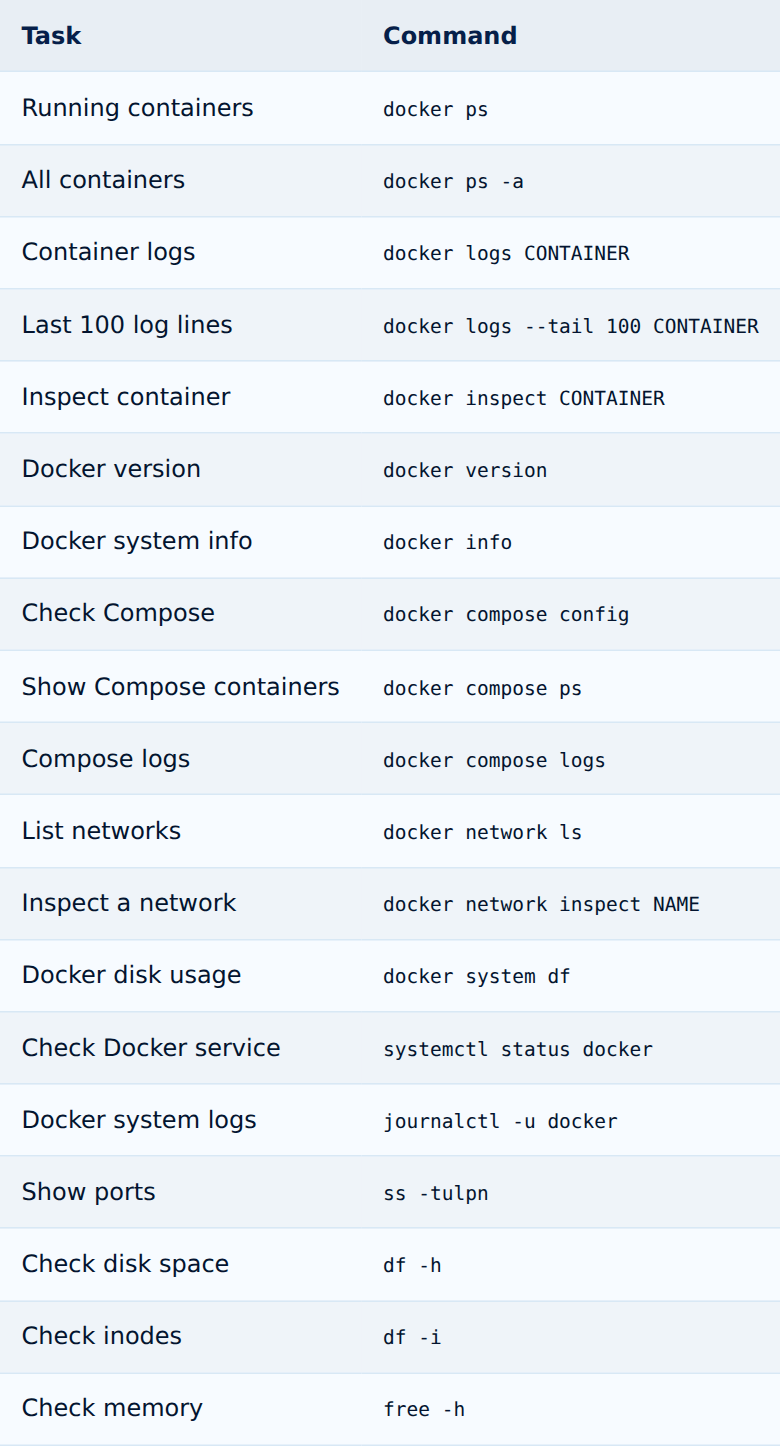
Tap the table to enlarge
Save this table as a small Docker troubleshooting checklist.
A universal ChatGPT prompt for Docker problems
The following prompt works as a template for nearly any Docker troubleshooting session:
You're helping me with a structured Docker error analysis.

System: [Operating system]
Docker version: [VERSION]
Problem: [DESCRIPTION]
Expected behavior: [WHAT SHOULD HAPPEN]
Actual behavior: [WHAT HAPPENS]

docker ps -a: [OUTPUT]
docker logs: [OUTPUT]
docker inspect: [RELEVANT OUTPUT]
Docker Compose: [CONFIGURATION, IF ANY]

Please:
1. Analyze the information.
2. Separate symptoms from likely causes.
3. State the most likely cause.
4. Name up to three alternative causes.
5. Give me exactly one safe diagnostic command.
6. Explain what that command checks.
7. Hold off on configuration changes until the cause is confirmed.
8. Explicitly warn me about commands that could delete data or affect services.
Used this way, ChatGPT doesn't become a magic fix-it button — it becomes a structured troubleshooting assistant. If you want to automate error analysis and code changes directly in the terminal, you can also add a coding agent. Install and Use Codex CLI on Linux (Read article)
When ChatGPT is especially useful for Docker
It helps most with unfamiliar error messages, complex log files, Docker Compose issues, networking problems, volume problems, permission errors, Dockerfile mistakes, faulty environment variables, container crashes, reverse-proxy issues, unusual exit codes, and migrations to new servers.
For Docker beginners especially, the AI can also explain why a particular diagnostic command is used — turning troubleshooting into a learning process at the same time.
When you shouldn't rely on ChatGPT alone
On production systems, AI should never be the sole basis for a decision. This applies especially to databases, backups, production web servers, Kubernetes clusters, Docker Swarm, security incidents, firewall rules, storage systems, and business-critical applications, where changes need to be traceable and controlled.
An AI suggestion is, first and foremost, exactly that: a suggestion. Before any critical change, ask: What does this command actually change? Could it cause data loss? Is there a backup? Can the change be reverted? Does it affect a live production system? If a Docker problem ever escalates into an actual security incident, a prepared response plan is far more useful than improvising under time pressure.
Matching product in my shop · German-language edition
Cyber Notfall Reaction Plan
This German-language 7-day incident response plan includes technical checkpoints for Docker along with immediate actions and checklists for production emergencies.
ChatGPT is changing how troubleshooting works
Technical troubleshooting used to look like this: copy the error message → open a search engine → dig through forums → compare ten similar issues → try a fix.
With AI, it can look like this instead: capture the error → gather logs → add context → have the AI analyze it → verify the hypothesis → confirm the cause → fix it precisely.
Core system administration skills don't disappear because of this — quite the opposite. If you understand Docker, Linux, and networking, you can use AI far more effectively. ChatGPT doesn't replace technical understanding; it can significantly accelerate how you apply it.
Conclusion: narrow down Docker errors faster with ChatGPT
Analyzing Docker errors with ChatGPT can save an enormous amount of time in day-to-day administration. The biggest benefit isn't simply generating some fix command — it comes from a structured analysis: gather logs → check state → form a hypothesis → run diagnostics → confirm the cause → fix the problem.
The key commands are docker ps -a, docker logs, docker inspect, docker compose config, docker info, and journalctl -u docker.
Combine this information with a precise prompt, and ChatGPT can make many common Docker problems understandable very quickly. Just remember to always strip sensitive information — passwords, tokens, API keys — out of logs and configuration first. Then AI becomes a genuinely practical tool for Docker troubleshooting, for beginners and experienced administrators alike. The same approach works for systemd errors too: Debug systemd Errors with ChatGPT: Using systemctl and journalctl the Right Way (Read article) The same structured approach applies to virtualization platforms like Proxmox: Manage Proxmox with AI: What ChatGPT and Coding Agents Can Really Do (Read article) And if you want to dig deeper into classic Linux logs like syslog and auth.log, check out Analyze Linux Logs with ChatGPT: syslog, auth.log, and journalctl (Read article)
FAQ: Docker and ChatGPT
Can ChatGPT analyze Docker logs?
Yes. You can paste Docker logs into ChatGPT and have it analyze error messages, correlations, and likely causes. For very large log files, select the relevant time range or the last log lines first.
Which command shows Docker errors?
For a single container, docker logs CONTAINERNAME is usually the first step. docker inspect and docker ps -a also provide important information.
Why won't my Docker container start?
Common causes include faulty start commands, missing environment variables, wrong permissions, invalid configuration, occupied ports, or application errors. docker logs usually reveals the specific cause.
What does Exited 1 mean in Docker?
Exit code 1 is a generic application error from the process running inside the container. The actual cause should be investigated in the container logs.
What does Docker exit code 137 mean?
Exit code 137 means the process was killed. A common cause is an out-of-memory (OOM) kill. This can be checked with docker inspect and the kernel logs.
Can ChatGPT review my docker-compose.yml?
Yes. ChatGPT can analyze YAML structure, ports, volumes, networks, and other configuration sections. Remove or replace passwords, API keys, and other sensitive values beforehand.
Can ChatGPT fix Docker automatically?
ChatGPT can analyze error messages and suggest fixes. Without direct access to the system, ChatGPT does not make changes to the Docker host on its own.
Should I send complete Docker logs to ChatGPT?
Not unfiltered. Logs can contain credentials, internal hostnames, tokens, or other confidential information. Anonymize sensitive values first.
Sources and currency
Article current as of August 19, 2026. The Docker commands and concepts described here are based on the official Docker documentation for docker logs, docker inspect, docker compose, exit codes, and networking.
10 ChatGPT Prompts for IT Support and Helpdesk (Read article)