One prompt in, one answer out: that's still how many people use ChatGPT.
With ChatGPT Work, it increasingly works differently.
You shouldn't have to spell out every single step anymore. Instead, you describe the result you want at the end, provide the information needed, and define the boundaries ChatGPT is allowed to work within.
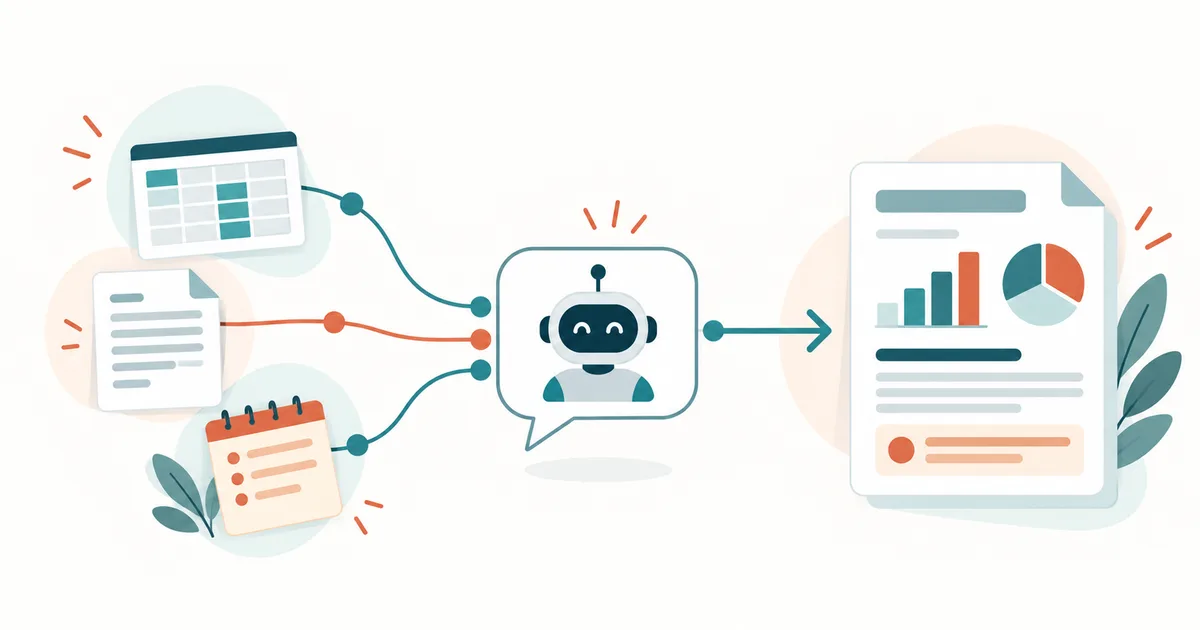
Several PDFs should become a report. A spreadsheet and various project notes should become a management summary. Research, notes, and an existing template should become a finished presentation.
That's exactly where the real value of ChatGPT Work begins. For what ChatGPT Work actually is and how it differs from a normal chat, see the foundational article ChatGPT Work Explained: How to Tackle Bigger Tasks with ChatGPT in 2026 (Read article). This article builds directly on that one and shows how to turn the theory into a working assignment.
OpenAI describes Work as an agent for longer, multi-step tasks. Work can research and analyze information, draw on files and connected apps, and turn that into documents, spreadsheets, presentations, reports, and other finished work results.
But one crucial point remains:
ChatGPT Work is only as good as the assignment you give it.
So in this guide, I'll show you not just what Work can do, but above all how to turn a rough idea into a controllable assignment — and from there, into an actually usable result.
ChatGPT Work is not just a longer regular chat
The most important difference isn't that Work can simply generate more text.
A normal chat is great for things like:
- a specific question,
- a short explanation,
- a single Linux command,
- a draft text,
- a quick summary,
- an idea, or
- an error message.
Work, on the other hand, is built for tasks that normally consist of several steps.
OpenAI currently distinguishes between Chat, Work, and Codex: Chat is mainly for quick questions and conversations, Work for more extensive research and finished work results, and Codex for software development.
A typical chat request would be:
"Summarize this PDF."
A Work assignment could instead read:
"Analyze the attached monthly reports. Compare the key figures with the previous month, identify unusual deviations, check for possible relationships, and turn this into a management report with an executive summary, a KPI table, and open review points."
The goal is no longer just an answer.
The goal is a work result.
The biggest ChatGPT Work mistake: starting with a one-line prompt
Anyone who has used ChatGPT for a while has gotten used to starting with short prompts.
"Analyze these files." "Turn this into a presentation." "Research our competitors."
Technically, Work can start from there. But for professional results, almost everything a human colleague would normally need for a good assignment is still missing.
Which files are relevant? What additional information may be researched? Who is the result for? What absolutely has to be included? How should the result be structured? Which data must not be changed? What should happen if information is missing? When does the task count as successful?
The larger the task, the more these details matter.
The most important rule: describe the result, not every click
With classic automation, you often have to specify every single step. With Work, you should think differently.
Instead of: "Open file A. Read column B. Compare it with file C. Then write five bullet points."
describe the goal instead: "Compare the revenue data from the current monthly report with the previous month. Identify the five largest percentage deviations, flag missing values, and create a summary suitable for leadership."
That defines what should come out. Work can then decide for itself which intermediate steps make sense.
That shift is exactly what matters. With normal prompting, you often ask: "What should ChatGPT do now?" With Work, you should ask: "What should be finished at the end?"
The KI-Buster workflow for ChatGPT Work
For larger tasks, a simple structure has proven useful.
1. Define the goal
Start with the concrete result. Not: "Analyze our support data." Instead: "Create a monthly report on our support data for IT leadership." That way, Work already knows the purpose and the audience.
2. Specify the source material
Next, explain which information should be used. For example: "Use the attached CSV with the tickets, the outage report as a PDF, and the notes from the project." This reduces the risk that Work uses the wrong data sources or makes assumptions.
3. Describe the task and analysis
Now comes the actual subject-matter task. For example: "Compare ticket volume, average resolution time, and the number of critical incidents with the previous month. Also look for recurring error categories."
4. Define the output format
This point is often forgotten. Should the result be a document? A spreadsheet? A presentation? A management report? A website? Work can create or edit documents, spreadsheets, presentations, reports, and analyses. OpenAI explicitly recommends naming the desired output format and how the file will be used.
5. Define the boundaries
Good assignments don't just say what ChatGPT should do. They also say what it should not do. For example: "Don't invent missing figures." "Don't change existing formulas." "Use only the provided files for internal figures." "Flag uncertainties explicitly." This part matters especially for business data.
6. Set review criteria
Finally, define what makes a good result. For example: "All figures must be traceable to a specific source. The executive summary must be no longer than ten lines. Larger deviations must be shown alongside the comparison value." That gives Work a kind of quality checklist.
A universal prompt template for ChatGPT Work
For many tasks, you can reuse the following structure:
GOAL:
Create [desired end result] for [audience/purpose].

SOURCE MATERIAL:
Use the following information and files:
[files, projects, apps, websites, or data sources]

TASK:
[Describe what should be analyzed, researched, compared, or created.]

RESULT:
The finished result should be a [document/spreadsheet/presentation/report/etc.].

IT MUST INCLUDE:
[Required components]

RULES:
[What must not be changed, assumed, or invented?]

SOURCES:
[Which sources may be used?]

REVIEW CRITERIA:
[When does the result count as correct and complete?]

FOLLOW-UP QUESTIONS:
If a piece of information is missing that would materially change the result,
ask before assuming it yourself.
That turns a simple prompt into an assignment. And that is exactly what Work is designed for.
Related product in my shop (German-language edition)
The Right Chat Prompt – free checklist
Seven clear steps covering goal, role, context, audience, tone, length, and output format — a solid foundation before you apply the prompt template above to ChatGPT Work.
A practical example: from a CSV export to a finished IT report
Suppose you administer a larger server environment and receive several types of data every month:
- a monitoring export,
- the ticket system,
- an incident list,
- downtime records,
- maintenance logs,
- project information.
A classic ChatGPT workflow would probably consist of many individual prompts.
With Work, you could instead write:
"Create a monthly IT operations report for leadership from the attached monitoring, ticket, and incident data. Compare the figures with the previous month. Identify notable changes in outages, availability, ticket volume, and resolution times. Look for recurring root causes. Produce an executive summary of no more than ten lines, then a table with the key KPIs, then an analysis of the biggest changes, and finally five concrete review points for the IT team. Use only the provided data for internal figures. Flag it if information is missing. Don't invent values."
Now Work has enough information to build a complete work process from it.
Don't just upload files — explain their role
Another common mistake: uploading five files and then writing, "Make something out of this."
ChatGPT can try to work out the relationships itself. But it's much better to give each important file a defined role. For example:
revenue-august.xlsx = current data
revenue-july.xlsx = comparison month
report-template.docx = desired structure and layout
notes.txt = additional context
That way, Work has to interpret far less. Especially with similarly named files, this reduces errors.
Reference file or template?
Work gets especially interesting when a result needs to be produced regularly. OpenAI distinguishes between a reference file and a template for this.
A reference file mainly serves as an example for a single task. A template, by contrast, combines an existing file with reusable instructions. That lets you produce weekly reports, project descriptions, financial models, or other recurring results using the same structure each time.
Suppose your monthly IT report always includes: a cover page, an executive summary, availability figures, incident analysis, ticket statistics, projects, risks, and action items.
In that case, you shouldn't describe that structure from scratch every month. Use it as a reusable template instead. The assignment then becomes something like: "Create the September report using the saved monthly report template and the new September data."
That's how a one-off AI task gradually turns into a reproducible process.
Using Work inside a ChatGPT Project
For recurring or longer-term tasks, you should combine Work with Projects.
A Project can bundle related chats, files, and instructions. Work can then be started within that project context.
A Project might be called, for example, "IT Monthly Reporting." It could contain: project instructions, the reporting template, KPI definitions, a server overview, naming conventions, old monthly reports, and current raw data.
That way, you don't have to provide key background information from scratch for every single task.
For a closer look at how Projects, chats, Memory, and files relate to each other, see How to Organize ChatGPT Properly: Chats, Projects, Memory, and Files Compared (Read article).
The combination can be summed up simply: a Project organizes the working context. Work carries out the task.
Connected apps make Work considerably more interesting
Work doesn't have to work exclusively with manually uploaded files. Depending on your plan, workspace, and permissions, connected apps and plugins can be included. For exactly what these layers mean and how skills, apps, plugins, and MCP differ, see AI Skills, Plugins, Apps, and MCP: What's the Difference? (Read article).
That can turn "Analyze this file" into something like: "Check the current project information, take the related documents into account, and create the weekly status report from it." That especially reduces manual data gathering for recurring processes.
For what becomes possible through Gmail, Google Drive, and Calendar, see Connect ChatGPT to Gmail, Calendar, and Drive – 2026 Guide (Read article).
The principle of minimal necessary permissions still matters, though. Just because Work could technically access a data source doesn't mean it should get access to every piece of company information.
Related product in my shop (German-language edition)
ChatGPT & Plugins installieren und Nutzen
A step-by-step German-language guide to apps, connected services, permissions, and privacy — useful groundwork before you combine Work with external applications.
Work can operate the web too
One particularly big difference from a classic chat is the cloud browser.
Through it, ChatGPT Work can read supported websites, click buttons, fill out forms, and carry out steps on public or signed-in websites. OpenAI does note that individual websites can block automated browsers, and that certain actions still require confirmation or manual takeover.
That opens up considerably more extensive workflows. Example: "Research the current terms from five providers for this product, compare price, contract length, and scope of service, and turn that into a table." Or: "Check these publicly available status pages and summarize any relevant incidents."
That is much closer to a genuinely delegated task than to a classic search query.
The cloud browser and your own browser aren't the same thing
There's an important distinction here.
The cloud browser runs on a separate machine in the cloud. It doesn't automatically use the cookies, open tabs, saved passwords, or browser sessions of your local browser.
The ChatGPT desktop app additionally includes a built-in browser. There, you and ChatGPT can work on the same page and, for example, use multiple tabs or download files.
Especially with business applications, you should always check: Which browser is currently being used? Which account am I signed in with? What permissions does ChatGPT have? What action will be carried out next?
Never type passwords directly into the prompt
Even though Work can operate websites, passwords, one-time codes, or payment information don't belong in a normal chat prompt.
OpenAI explicitly recommends using the intended secure login processes for sign-ins.
That sounds obvious. But as soon as people start delegating complete workflows to AI agents, the separation between working context and credentials becomes especially important.
A good rule of thumb: context belongs in the assignment. Secrets belong in the authentication process designed for them.
Don't just walk away while it's working
Another difference from a normal prompt: you can watch and steer Work during a larger task.
OpenAI explicitly describes that users can follow progress, answer follow-up questions, change direction, and approve important actions.
You should actually use that. If you notice during processing that Work is focusing on the wrong thing, correct it early. For example: "Focus more on operating cost trends. The marketing data isn't relevant for this report." Or: "Only use German providers for this comparison."
That's more efficient than waiting for a completely wrong result and starting over from scratch.
Work with checkpoints
The more critical a result is, the more useful checkpoints become.
For a larger market analysis, you might first check the sources used. For a financial report, check the calculated figures first. For a presentation, check the structure and key messages first. For an extensive research task, check the companies that were found first.
After that, let Work continue to the final result. This is especially useful when an early wrong assumption would affect every later step.
A finished document isn't automatically a correct document
The quality of the presentation must not be confused with factual correctness.
A professional-looking presentation can contain wrong numbers. A cleanly formatted report can misinterpret a source. A correct calculation can rest on a wrong starting value.
So you should especially check: figures and calculations, the data sources used, dates, summaries of key statements, automatically added information, permission changes, external publications, and business-critical decisions.
The bigger the potential impact of a mistake, the stronger human review needs to remain.
Don't use ChatGPT Work on an "it can do anything" basis
As soon as AI agents access files, email, browsers, cloud storage, or company systems, permissions become a central security topic.
The least-privilege principle should still apply: an AI agent should only get the data and actions it actually needs for its specific task.
An agent that creates a monthly report from existing files doesn't automatically need write access to every piece of company data. An agent that summarizes emails doesn't automatically need the right to delete messages. An agent that researches prices doesn't automatically need the ability to place orders.
Technical capability and necessary permissions are two different things. For a closer look at how to scope and grant permissions to AI agents, see What Permissions Should an AI Agent Get? Security Rules for Agents (Read article).
The desktop app expands ChatGPT Work significantly
In the current ChatGPT desktop app, Chat, Work, and Codex can all be used within a single application.
With the right permission, Work can also use local files and desktop applications there. Cloud-based Work chats can additionally be continued across desktop, web, and mobile devices.
This gets especially interesting when the source material isn't stored in the cloud. For example:
Local project folder
↓
ChatGPT Work
↓
Analyze files
↓
Additional research
↓
Create report
↓
Review result
Even on the desktop, though, you should only share the folders that are actually required for the given task.
Automating recurring tasks
A genuinely useful Work workflow doesn't necessarily end after one run.
Work also supports scheduled tasks that can run once, recurrently, on a schedule, or in response to supported triggers.
"Create a project status report" can later become: "Create the current project status every Monday morning from the available information." Or: "Regularly check the relevant dashboards and let me know if an important metric changes."
The key point: don't automate right away. First build a good manual workflow. Review the result. Improve the assignment. Test it again. Once the same process works reliably several times in a row, consider turning it into a recurring task.
The better order: stabilize first, then automate
A common mistake with AI agents is trying to hand off as much as possible autonomously right from the start. A better approach:
1. Run the task manually with Work
↓
2. Review the result
↓
3. Improve the assignment
↓
4. Test it again
↓
5. Create a template
↓
6. Minimize permissions
↓
7. Automate the recurring process
That way, you're automating an already-tested process instead of an unknown source of errors.
A practical example for small businesses
Picture a small business that needs a weekly report every Friday. The information comes from several project files, customer communication, a revenue overview, support cases, and internal notes.
In the past, an employee would gather this information manually. With Work, the assignment could read:
"Create the weekly report for management. Use the current project information, the provided revenue overview, and this week's support data. Start with an executive summary. Then show key completed tasks, open items, notable changes, and risks. Always show figures alongside their source. Don't invent missing information. Use the saved weekly report template and don't change its structure."
After a few successful runs, this can turn into a recurring workflow. That's exactly where Work gets interesting for businesses — for more directly usable examples, see AI in the Office: 10 Tasks Small Businesses Can Automate Right Away (Read article).
Not because the AI produces especially polished text. But because many small manual steps turn into a reproducible process.
Don't confuse ChatGPT Work with Codex
Technical users in particular might be tempted to handle every larger task in Work automatically. But for software development, Codex still exists.
A simple rule of thumb:
Chat: "Why isn't this Bash command working?"
Work: "Analyze this operational data and create a complete monthly report."
Codex: "Analyze this repository, find the bug, implement a fix, and run the tests."
Codex specializes in software development, repositories, developer tooling, and technical workflows. Work focuses more on general work results, research, and information processing.
When should you use ChatGPT Work?
Work is especially worthwhile when several of the following apply:
- The task consists of several steps.
- Multiple files or information sources are needed.
- A finished document or other file should be the result.
- Information needs to be researched and compared.
- An existing format needs to be followed.
- The result needs to be revised multiple times.
- The task repeats on a regular basis.
- Different apps or websites are involved.
- Raw data should become a usable work result.
For a single short question, by contrast, Work is often unnecessary.
Seven rules for better results with ChatGPT Work
If you only take away the key points from this article, make it these:
- Describe the desired result — not every individual step.
- Explain which files and sources have which role.
- Define the output format in the assignment itself.
- Explicitly say what Work must not change or invent.
- Set quality and review criteria.
- Only grant the permissions actually needed.
- Only automate a workflow once you've tested it successfully.
That also changes how we think about prompts.
The perfect Work prompt isn't really a prompt anymore
This may be the most important takeaway. A good Work prompt increasingly resembles a classic ChatGPT question less and less. It resembles a briefing to a colleague more and more.
You describe: the goal, the context, the input data, the constraints, the expected result, the quality requirements, and the decision boundaries.
That is much closer to project management than to classic prompt engineering.
And that's exactly why one of the most important AI skills over the next few years might not be writing especially creative prompts. It might be defining work cleanly.
Conclusion: ChatGPT Work starts with the result
ChatGPT Work fundamentally changes how ChatGPT is used. Instead of running a long conversation made up of twenty separate prompts, you can increasingly delegate complete tasks.
The productive workflow: define the goal → provide context → set boundaries → let Work work → review intermediate results → check the final result → improve the workflow → automate if it makes sense.
Anyone who uses Work like a normal chat with longer prompts is only using a small part of its potential.
It gets interesting once you stop asking ChatGPT, "How do I do this work?" and start saying instead: "This is the result I want. This is the information. These are the rules. Create the finished result from this."
That difference is exactly what turns ChatGPT from an assistant for individual questions into an agent that can support complete work processes.
Frequently asked questions about ChatGPT Work
What is ChatGPT Work?
ChatGPT Work is a work mode, or agent, for longer, multi-step tasks. It can research and analyze information, work with files and connected apps, and turn that into finished documents, spreadsheets, presentations, reports, and other work results.
What should a good ChatGPT Work prompt look like?
A good Work assignment should include at least a goal, source material, the task itself, the desired output format, constraints, and review criteria. The most important part is describing the finished result, not just listing individual steps.
Can ChatGPT Work create files?
Yes. Depending on plan, interface, workspace settings, and file type, ChatGPT Work can create or edit documents, spreadsheets, presentations, reports, and analyses, among other file types.
Can ChatGPT Work use local files?
In the ChatGPT desktop app, Work can use local files and folders with the right permission. On the web and on mobile devices, there is no direct access to files on your own computer.
Can ChatGPT Work operate websites?
Through the cloud browser, Work can read supported websites, click elements, fill out forms, and carry out certain workflows. Individual websites can still restrict or block automated access, however.
Can ChatGPT Work handle recurring tasks?
Yes. Work supports scheduled tasks that can run once, recurrently, or in response to supported triggers. The exact features available depend on your plan, workspace, and connected services.
What's the difference between ChatGPT Work and Projects?
A Project organizes related chats, files, and instructions. Work, by contrast, carries out larger tasks using that context. An existing Project can therefore serve as the working environment for Work.
What's the difference between ChatGPT Work and Codex?
Work is designed for general multi-step tasks such as research, analysis, documents, and workflows. Codex focuses on software development, source code, repositories, tests, and developer tooling.
Sources and currency
This article was fact-checked on September 27, 2026 against official OpenAI information on ChatGPT Work, and cross-checked again on October 12, 2026 against current press coverage of the ChatGPT Work launch. Sources considered include documentation on ChatGPT Work and Codex, on creating and editing documents, spreadsheets, and presentations, on the cloud browser, and on scheduled tasks.
Because OpenAI continues to expand ChatGPT Work, features, supported file types, plans, permissions, and interfaces may later differ from what is described here.