
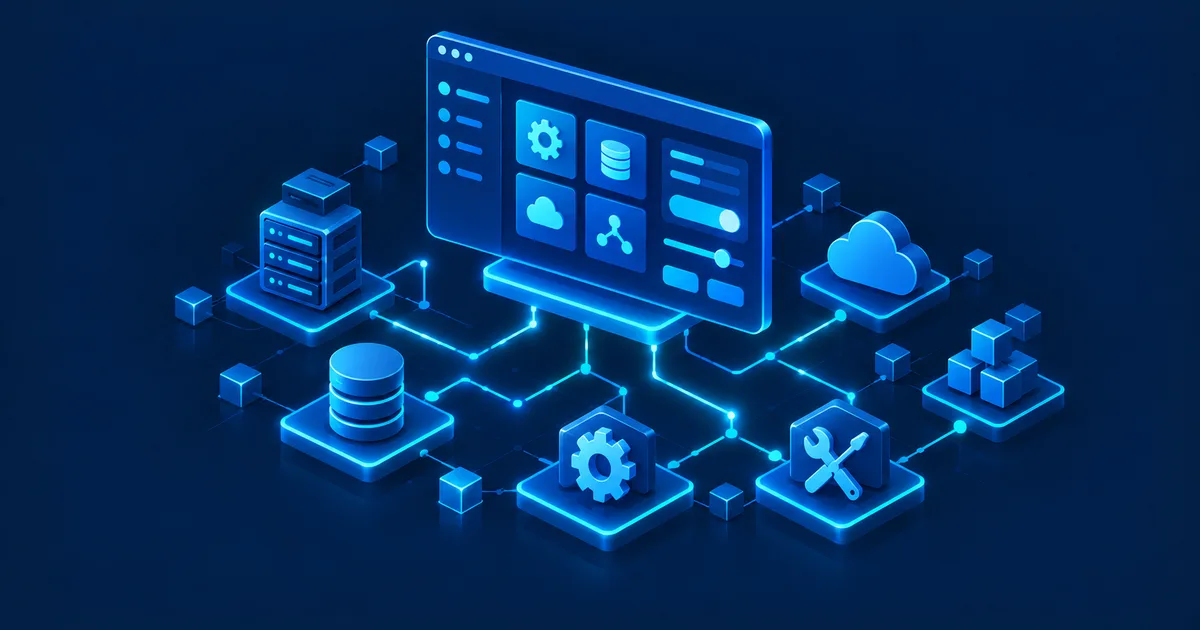
Imagine asking an AI assistant about the state of your servers. Instead of a long text answer, a clean dashboard appears right in the chat: CPU load, memory usage, warnings, and a selectable time range. You click on a server that stands out and get further details.
Or you have an AI analyze your invoices. Instead of reading every result in an unwieldy text table, you get an interactive view with filters, charts, and selectable entries.
That's exactly where MCP Apps comes in. The Model Context Protocol (MCP) is best known for connecting AI assistants to external tools and data sources — I cover the basics of MCP itself in Model Context Protocol (MCP) Explained Simply (Read article). MCP Apps extends that idea: an MCP server can now provide not just functions, but interactive user interfaces that a compatible AI client embeds directly in the conversation.
That changes how people work with AI applications. A chat that retrieves information and runs actions can become an interactive work environment.
In this article, you'll learn how MCP Apps works, how it differs from classic MCP tools, which technical components are involved, and why this development matters for businesses and developers alike.
Editorial note: This article covers the official MCP Apps extension (SEP-1865) from January 26, 2026, and the technical documentation available at the time of research. Since protocol details and client support can keep evolving, check the current specification before relying on this in production. Status of this article: November 4, 2026.
What is MCP Apps?
MCP Apps is an extension of the Model Context Protocol that lets MCP servers provide interactive user interfaces for compatible AI clients.
Until now, a typical MCP interaction often looked like this:
- A user asks a question.
- The AI assistant decides which MCP tool is needed.
- The MCP server runs the requested function.
- The result is returned to the assistant.
- The assistant turns that into an answer.
That works great for many tasks. But not every piece of information is well suited to plain text. Monitoring 50 servers, a large project plan, or a table with several hundred records are good examples.
With MCP Apps, the server can additionally offer an interface that gets rendered inside a supporting AI client. That interface can include, for example:
- Interactive tables with sorting and filtering
- Forms for entering and editing data
- Charts and dashboards
- Selectors and buttons
- Status indicators for running processes
- Visual overviews of complex relationships
Importantly: MCP Apps doesn't replace existing MCP tools. It adds a visual way to interact with them.
MCP Tools vs. MCP Apps: What's the Difference?
The key difference is how a user interacts with what's being offered. A classic MCP tool exposes a machine-readable function that the AI assistant calls and interprets. MCP Apps adds a user interface on top of that mechanism — one a human can operate directly.
| Property | Classic MCP tool | MCP App |
|---|---|---|
| Main function | Retrieve data or run actions | Present data and functions interactively |
| Output | Text or structured results | Embedded user interface |
| User interaction | Through the AI chat | Through chat and UI elements |
| Example | Retrieve server status | Show server status as a dashboard |
| Technical basis | MCP protocol | MCP with UI extension |
| Support | Any MCP-capable client | Client with MCP Apps support |
A simple example illustrates the difference. Without MCP Apps, you might ask your assistant: "Show me every server with CPU load above 80 percent." The assistant calls an MCP tool and replies in text, for example: "Three servers exceed the threshold: web-01 at 91%, db-02 at 86%, and app-03 at 83%."
With MCP Apps, the assistant can instead show an interactive table you can sort by CPU load, select individual servers in, and expand with further metrics. The table below shows what such a dashboard view might look like (the values are made-up example data with no connection to real systems):
| Server | Type | CPU load | Status |
|---|---|---|---|
| web-01 | Web server | 91% | Critical |
| db-02 | Database | 86% | Critical |
| app-03 | Application server | 42% | Normal |
| proxy-01 | Load balancer | 18% | Normal |
In a real MCP app, this table could be sorted, filtered, and expanded into a detail view live — with the data coming from an authorized MCP tool, not from a static list like the one in this article.
How Does MCP Apps Work Technically?
The core technical idea is separating a tool's function from its visual presentation. An MCP server keeps providing tools as usual. It can additionally offer UI resources that a compatible host renders as an interactive view.
1. The MCP server provides a tool. As with ordinary MCP integrations, the server defines a tool, for example get_server_status. That tool returns structured information about the monitored systems.
2. The tool points to a UI resource. With MCP Apps, a tool can reference a matching UI resource through metadata, using the _meta.ui.resourceUri key, among others. Such a reference might look like this:
{
  "name": "get_server_status",
  "description": "Returns the status of the servers",
  "_meta": {
    "ui": {
      "resourceUri": "ui://monitoring/dashboard.html"
    }
  }
}
This snippet only illustrates the UI-related principle, not a complete tool definition.
3. The host loads the interface. A compatible MCP client can request the referenced resource from the server and display it inside an isolated environment. The interface is typically built with web technologies — HTML, CSS, and JavaScript. The initial specification covers this through the MIME type text/html;profile=mcp-app. The URI ui://monitoring/dashboard.html isn't an ordinary public web link; it identifies a resource served through the MCP integration.
4. The interface communicates with its environment. Through the MCP Apps communication layer, the embedded view can interact with the host, trigger supported actions, and present results. Exactly which interactions are possible depends on the implementation, the permissions granted, and the host's capabilities. One important boundary remains: an embedded interface doesn't automatically get access to every tool, file, or piece of data the AI assistant has.
How Do MCP, HTML, and JavaScript Fit Together?
Several technologies work together in MCP Apps. MCP provides the standardized connection between the AI application and the external server, describing tools, resources, and communication. HTML and CSS define the look of the interface — tables, input fields, buttons, and other controls. JavaScript handles interaction inside the interface, such as reacting to clicks, refreshing a table, or talking to the host environment.
That doesn't mean arbitrary JavaScript gets to run unrestricted inside the AI client, though. The interface runs inside a sandboxed iframe — secure isolation of the embedded application is a core part of the security model. For developers, this approach is particularly interesting because existing web development skills and tools carry over directly.
Five Practical Uses for MCP Apps
MCP Apps isn't just interesting for experimental AI projects. The extension can also be useful in everyday business processes.
1. Server monitoring right inside the AI chat. An administrator asks about the state of their infrastructure. An MCP app shows servers, CPU values, memory usage, and warnings in a dashboard. Individual systems can be investigated in detail.
2. Analyzing invoices and business data. An AI assistant pulls revenue data. An MCP app presents it as a chart with a date filter, categories, and selectable line items.
3. Project management with interactive tasks. Tasks, owners, and project phases can appear in a visual overview. The user picks a task, edits details, and submits changes.
4. Searching databases and results. Instead of dumping hundreds of database records as text, an MCP app can offer a sortable result list with filters and detail views.
5. IT approvals and administrative workflows. An AI agent prepares a change. The MCP app shows affected systems, parameters, and risks. An administrator can review the details before an authorized action runs.
These examples describe possible implementations. Not every MCP-capable application supports interfaces like this yet.
Why MCP Apps Matters for Businesses
The main benefit is that AI assistants and classic software interfaces move closer together.
Fewer app switches. Many workflows involve several steps: retrieve data, review results, open an admin tool, make a change, and verify it afterward. MCP Apps can bring steps like this together in one shared work environment. That doesn't automatically save time on every task, but it can reduce unnecessary context switching for frequently repeated processes.
Better control over AI actions. Not every decision should be fully automated. Changing firewall rules, deleting data, or releasing a payment often calls for human review — sometimes it's outright required. An MCP app can present the needed information clearly and enable a deliberate confirmation step. Important: a button alone isn't an adequate security control — the server still has to independently verify the permissions and legitimacy of every action.
Existing systems become more accessible. Many businesses run their own admin interfaces, APIs, and internal applications. With MCP and a matching UI extension, selected functions can be woven into AI-assisted workflows without replacing the whole application. That can make sense for inventory systems, monitoring tools, document management, or internal approval processes — for instance when an existing n8n automation already runs as an MCP server and simply gains an interface on top (more on that in n8n as an MCP Server: Making Workflows Available to AI Agents (Read article)).
MCP Apps Has Been an Official Standard Since January 2026
MCP Apps is now more than an experimental idea. On January 26, 2026, the extension was published as the first official MCP extension. It carries the identifier io.modelcontextprotocol/ui and is based on the SEP-1865 specification.
Development was shaped in part by the community project MCP-UI and the OpenAI Apps SDK. The goal is a shared standard for interactive interfaces across different MCP clients. According to the official announcement, Claude, ChatGPT, Goose, and Visual Studio Code support this extension, among others; further providers say they are working on support. The concrete features available can still differ between hosts.
That's an important step forward: developers don't fundamentally need to build a completely different user interface for every AI assistant. Full interchangeability without any adjustments isn't guaranteed yet, though.
MCP Apps in ChatGPT: What's Possible?
ChatGPT can also use interactive interfaces provided by MCP servers. OpenAI's documentation describes using the open MCP Apps standard for this. The interfaces render inside an isolated iframe and communicate with the host through a defined interface.
That opens up possibilities such as:
- An AI assistant shows a form where the user fills in details.
- An analysis returns a chart whose data can be explored interactively.
- A tool provides a result list from which individual records can be selected.
- An application walks the user through a multi-step process.
The interface becomes part of the conversation, without every single click needing to be phrased as a new chat prompt.
Building Your Own MCP Apps: Getting Started
If you already run an MCP server, you don't have to start from zero. A sensible starting point is extending an existing tool with a simple interface.
Step 1: Pick a suitable use case. Not every tool needs a graphical interface. A tool that just returns a piece of software's current version works fine as plain text. It looks different when many records need comparing, parameters need adjusting, or several actions need carrying out. A small dashboard that visualizes existing monitoring data is a good fit for a first MCP app.
Step 2: Define the tool and the UI resource. The MCP server needs a tool and a matching UI resource. The resource is addressed through a ui:// URI and contains the interface. The tool points to this resource with _meta.ui.resourceUri. If you want to build an MCP server from scratch, I walk through it step by step in Building Your Own MCP Server: Architecture and a Practical Example (Read article).
Step 3: Implement the communication. The embedded interface needs to be able to talk to the host. MCP Apps defines a JSON-RPC-based communication layer over postMessage for this. Within whatever capabilities the host allows, the interface can request tool calls, receive data, or provide information back to the AI assistant. Developers should preferably use the official MCP Apps SDK rather than reimplementing the communication protocol from scratch.
Step 4: Set permissions. One important detail is tool visibility. MCP Apps distinguishes between tools that are visible to the AI model and ones that only the embedded application is allowed to call. The metadata might look like this:
{
  "_meta": {
    "ui": {
      "resourceUri": "ui://monitoring/dashboard.html",
      "visibility": ["model", "app"]
    }
  }
}
With ["model", "app"], the tool is available to both the model and the app. With ["app"], a tool can be restricted to the app — useful for internal UI-only functions, such as refreshing a table. This visibility setting is not a substitute for server-side authorization.
Step 5: Test fallback and compatibility. MCP Apps is an optional extension. If a host doesn't support an MCP Apps interface, the underlying tool should still return an understandable result. This progressive-enhancement strategy is part of the official concept.
Matching product in my shop · German-language edition
MCP Server Praxisleitfaden 2026 – Model Context Protocol, Security, GDPR & Server Administration
Explains the Model Context Protocol and how to run your own MCP servers securely, in clear, practical terms — from tool calls and UI extensions like MCP Apps to least privilege and GDPR questions around remote MCP servers.
Security: What Businesses Need to Watch for with MCP Apps
As soon as a user interface can trigger actions or access business data, extra security requirements come into play. That's why the MCP Apps specification calls for isolated iframe environments and controlled communication paths.
For production use, the following areas deserve particular attention:
| Security area | Recommendation |
|---|---|
| Authentication | Reliably authenticate users and server connections |
| Authorization | Check every action against permissions server-side |
| UI isolation | Use sandboxing and a Content Security Policy |
| Data access | Only expose data that's actually needed |
| Tool calls | Validate inputs and enforce permissions |
| Logging | Document critical actions so they can be traced |
| Approvals | Require explicit confirmation for high-risk changes |
| Dependencies | Keep JavaScript libraries and resources under control |
Things get particularly critical when an MCP app offers administrative functions. An interface for managing databases, for example, shouldn't be allowed to run delete commands just because a user clicked a button. The server has to verify that the logged-in user actually holds the right permission — I cover what solid permission design for MCP servers looks like in MCP Server Security: Permissions, Tools, and Risks Explained (Read article). If you want the fundamentals of reliably authenticating users and clients, see MCP Authentication Explained: OAuth, Tokens, and Secure Access (Read article).
Content from external data sources also shouldn't be treated as trustworthy instructions for an AI agent without verification — that's especially relevant around prompt injection. I cover the specific attack paths and how to defend against them in MCP Prompt Injection: Why External Data Can Become a Security Risk (Read article).
When Is MCP Apps Worth It — and When Isn't It?
MCP Apps is particularly useful once interaction goes beyond plain text answers.
| Use case | Recommendation |
|---|---|
| Look up a single status value | Classic MCP tool |
| Filter through extensive data | MCP App |
| Produce a short text summary | Classic MCP tool |
| Interactive configuration | MCP App |
| Automated background action | Classic MCP tool |
| Visual review before an approval | MCP App |
| Display complex charts | MCP App |
The point isn't building as many interfaces as possible. An MCP app should be used where it provides real added value. An extra user interface means development effort, needs testing, and widens the potential attack surface. For simple tasks, a classic MCP tool therefore often remains the better choice. Some tasks, where an AI agent just needs more time than usual to respond, are better solved with MCP Tasks instead of a dedicated interface — more on that in MCP Tasks Explained: Running Long AI Tasks Reliably (Read article).
MCP Apps, MCP-UI, and the Apps SDK: How Do They Relate?
These terms often get mixed up. MCP Apps refers to the standardized extension of the Model Context Protocol for interactive user interfaces. MCP-UI is an earlier community project that developed and tested important groundwork for interactive MCP interfaces. The OpenAI Apps SDK provides development tools for interactive applications in the ChatGPT ecosystem and helped shape the standardization effort.
The official MCP Apps specification brings the key ideas from these approaches together. The goal is a shared technical foundation that different AI hosts can build on. That should make it easier, going forward, for developers to ship interactive applications across multiple AI platforms — a topic closely related to the broader distinction between skills, plugins, apps, and MCP, which I break down in AI Skills, Plugins, Apps, and MCP: What's Actually the Difference? (Read article).
Conclusion: MCP Apps Turns AI Assistants Into Interactive Work Environments
MCP Apps is an important development for the Model Context Protocol. Until now, the focus was on connecting AI assistants to external tools and data sources. MCP Apps adds another layer: direct, visual interaction between people, AI, and applications.
That means simple tool results can turn into interactive dashboards, forms, and complex workflows. For businesses, this opens up new ways to tie existing software and AI assistants more closely together. For developers, the standardized extension provides a foundation so interactive features don't need to be built from scratch for every AI client.
And for users, it mainly means one thing: not every task will need to be handled through a string of chat messages going forward. Sometimes a well-designed form, table, or dashboard is simply the better solution. MCP Apps brings both worlds together.
FAQ: MCP Apps
What is MCP Apps in simple terms?
MCP Apps extends the Model Context Protocol with interactive user interfaces. An MCP server can provide forms, tables, or dashboards for a compatible AI assistant, in addition to data and functions.
Is MCP Apps its own protocol?
No. MCP Apps is an official, optional extension of the Model Context Protocol. The underlying MCP communication stays the same.
Can I use MCP Apps in ChatGPT?
Yes, ChatGPT supports the open MCP Apps standard. Whether a specific app is available and usable depends on the integration, the client you use, and your access rights.
Do I need my own server for MCP Apps?
Not necessarily a self-hosted server. You do need an MCP integration that provides the matching tools and UI resources, though — one you run yourself or one run by a third party.
Can an MCP App change data?
Yes, provided the matching tools are exposed and the user has the required permissions. Critical changes should be secured through server-side checks and appropriate approval steps.
Does MCP Apps still work without a graphical interface?
The underlying MCP tools can keep working without an embedded interface. The implementation should provide a suitable text-based or structured fallback for that case.
Is MCP Apps relevant for small businesses?
Yes, especially when existing systems already expose APIs and frequently need interactive reviews, inputs, or approvals. Whether the development effort pays off depends on the specific use case.
Sources and Technical References
Article status and fact-check: November 4, 2026. This article draws on the official MCP Apps announcement from January 26, 2026, the official SEP-1865 specification, and OpenAI's documentation on building user interfaces for MCP servers. Since MCP Apps is a young extension that keeps evolving, supported clients, features, and individual details may change with future specification versions.
Related Articles on KI-Buster
If you want to go deeper into the Model Context Protocol and building your own AI integrations, KI-Buster has more related topics:
Model Context Protocol (MCP) Explained Simply (Read article)
MCP Tasks Explained: Running Long AI Tasks Reliably (Read article)
MCP Authentication Explained: OAuth, Tokens, and Secure Access (Read article)
n8n as an MCP Server: Making Workflows Available to AI Agents (Read article)
MCP Prompt Injection: Why External Data Can Become a Security Risk (Read article)
MCP Server Security: Permissions, Tools, and Risks Explained (Read article)
AI Skills, Plugins, Apps, and MCP: What's Actually the Difference? (Read article)
Status: November 2026.